Step-by-step instructions with screenshots for every part of the app.
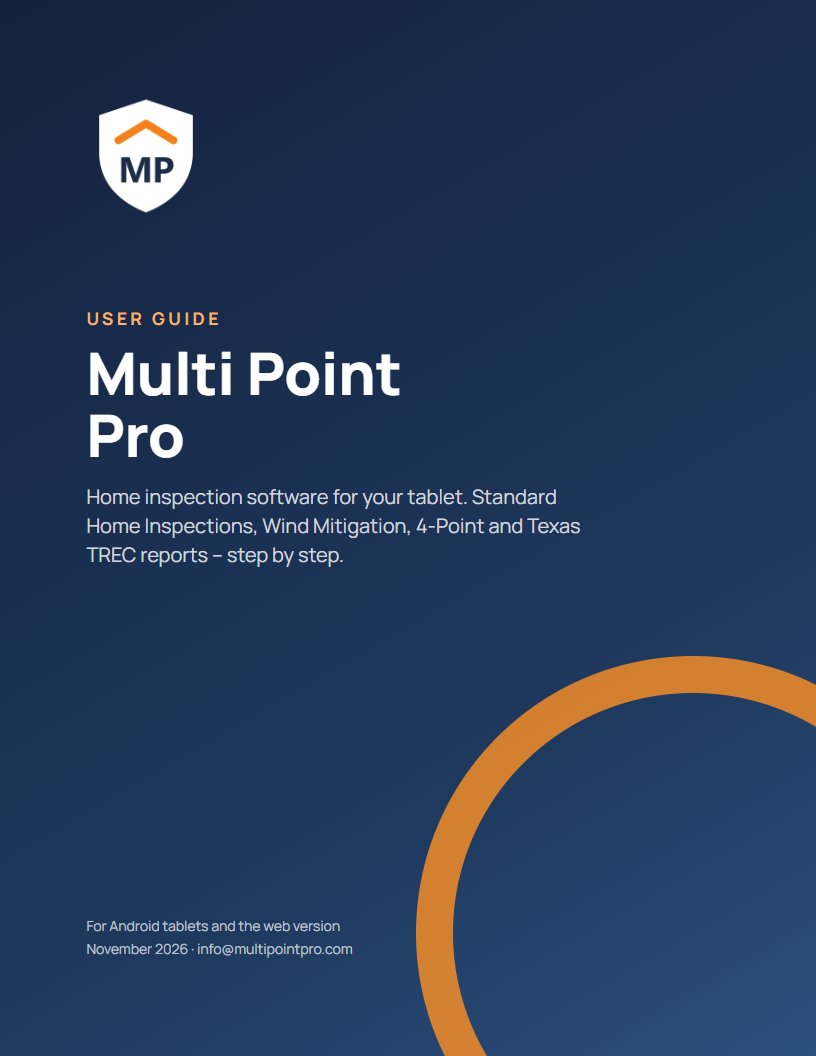
PDF · 7.0 MB · 13 chapters: getting started, company setup and cover pages, new inspections, recording findings, invoices, Wind Mitigation and 4-Point, Texas TREC reports, PDF reports, backups and sync, settings, your plan and subscription, and troubleshooting.
⬇ Download PDF Open in browserNo. Everything saves automatically as you enter it.
No. You can complete inspections and create PDF reports with no connection. You only need internet for sync, Improve with AI, and emailing or sharing reports.
Choose a smaller Photo Size in Settings › Display before taking photos.
Choose a larger Text Size in Settings › Display.
Yes, on Standard reports. Use the arrows and the folder button at the top right of the item. To keep your layout for every new inspection, set it up in your own template under Settings › Template.
Deleted inspections can only be brought back from a backup: tap Restore Backup on the Home screen and choose the backup file.
Back up each inspection with Share / email / cloud and restore it on the new tablet, or turn on Sync on both devices.
Still stuck? Email info@multipointpro.com – please include your device, the app version (bottom of Settings), and what you were doing. We aim to reply within 1–2 business days.